Kanban Board
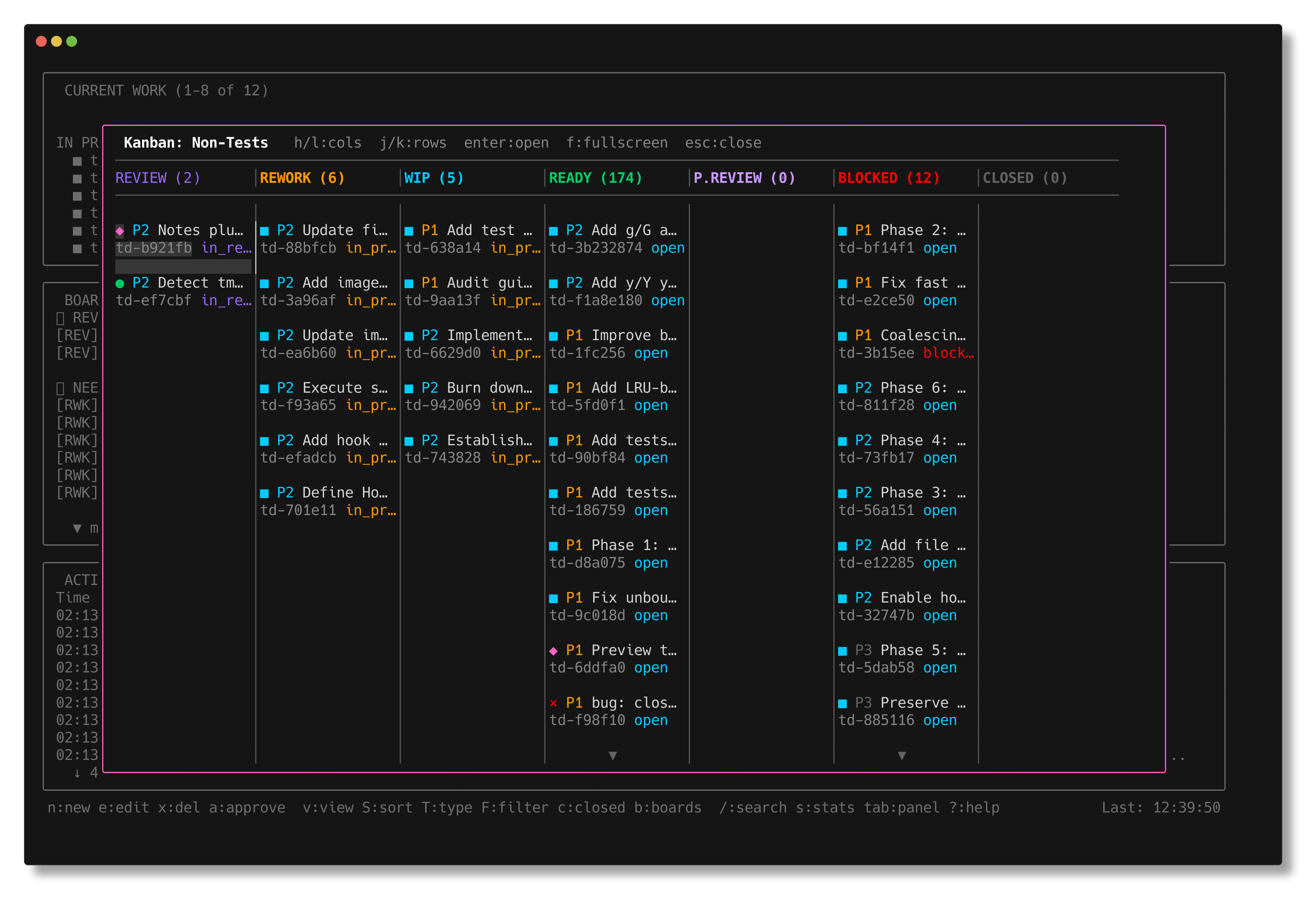
The kanban board provides a visual, column-based view of your tasks organized by status. It's available as an overlay on top of the board view, or as a fullscreen takeover.
Opening the Kanban Board
- Switch to board view (press
bin the monitor) - Press
Vto open the kanban overlay
Fullscreen Mode
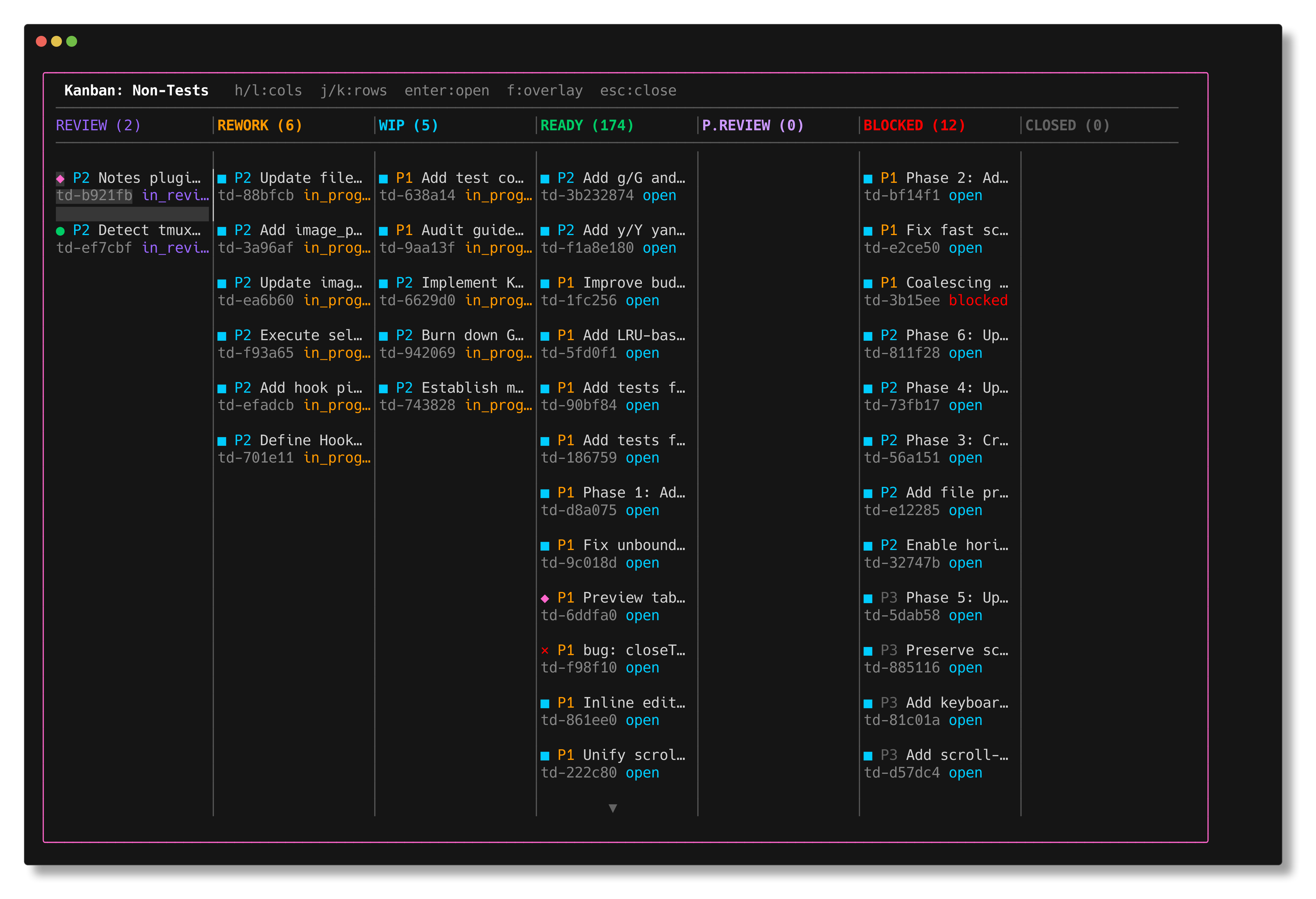
Press f to toggle between overlay and fullscreen. Fullscreen takes over the entire terminal for maximum visibility.
Columns
The board displays 7 status columns:
| Column | Description |
|---|---|
| Review | Issues ready for you to review (someone else's work) |
| Rework | Issues rejected in review that need fixes |
| WIP | Issues actively being worked on (in progress) |
| Ready | Open issues available to pick up |
| P.Review | Issues you submitted, pending review by others |
| Blocked | Issues blocked by dependencies or explicit status |
| Closed | Completed issues |
Each column header shows the count of issues in that category.
Navigation
| Key | Action |
|---|---|
h / l | Move between columns |
j / k | Move up/down within a column |
Enter | Open issue details |
f | Toggle fullscreen |
Esc | Close kanban view |
Column Scrolling
When a column has more cards than fit on screen, it scrolls independently. Scroll indicators (▲ / ▼) appear at the top and bottom of columns with overflow. Scroll positions are preserved when navigating between columns.
Cards
Each card displays:
- Status icon and priority level
- Truncated issue title
- Issue ID and current status
The selected card is highlighted. Press Enter to open the full issue detail modal.